

Builder
Overview
Open the Builder to design your storefront, and learn what each panel in the left menu does.
Once you have created a shop, you can open it in the Builder.
Watch the walkthrough
Prefer to follow along in a video? Watch the Builder walkthrough right here, then read the guide below.
Opening the Builder
On the All Shops page, find your shop card and hover over it. Two options appear on top of the shop preview:
- Dashboard. Manage your store's data (orders, products, customers, settings).
- Builder. Open the visual editor to design and edit your storefront.

Every shop has both a Dashboard and a Builder. Use the Builder to change
how your store looks, and the Dashboard to manage what your store sells.
The Builder workspace
Click Builder to open the editor. Your storefront loads in the center canvas, and a toolbar at the top lets you switch device sizes (desktop, tablet, mobile), set a custom resolution, zoom, and undo/redo changes.
The left menu
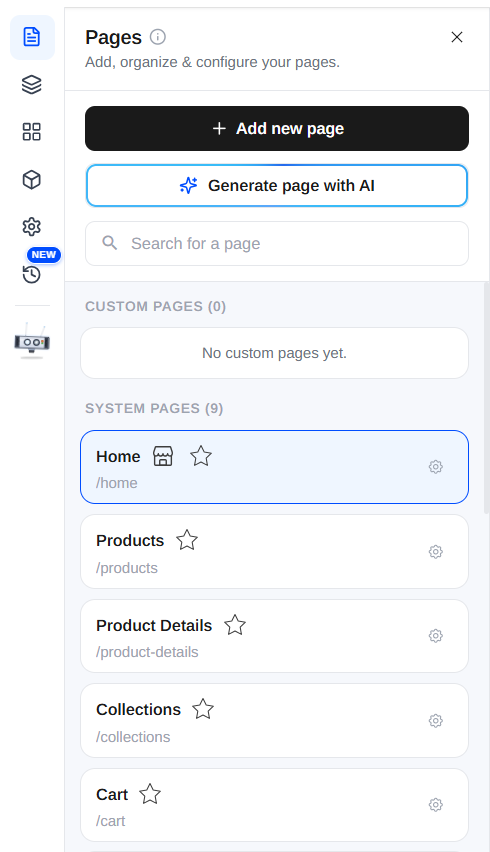
The panel on the left side of the Builder gives you access to everything you need to design your store:
- Pages. View and manage all the pages of your store, and switch between them.
- Layers. See the structure of the current page as a tree of elements, and select or reorder them.
- Layouts. Choose and apply ready-made page layouts.
- Blocks. Add pre-built content blocks, dynamic, static, and elements, onto the page.
- Settings. Configure page-level and store-level settings for the Builder.
- Version history. Review previous versions of your store and restore an earlier one if needed.
- AI Buddy. Make changes to your store just by describing them, generate pages, update content, and link things up from a prompt.
Start with Blocks to add sections to a page, then use Layers to fine-tune
their order and Settings to adjust the details.
Explore the Builder
Jump straight into any part of the Builder:
Watch the detailed tutorial
Want a deeper walkthrough? This tutorial covers editing your store and meeting Buddy in more detail.