
Pages
In the Builder, open the Pages panel from the left menu to add, organize, and configure every page of your store. From here you can create a new page, generate one with AI, or search for an existing page.
Prefer to follow along in a video? This short clip walks through writing a prompt that generates a real page, then read the guide below.
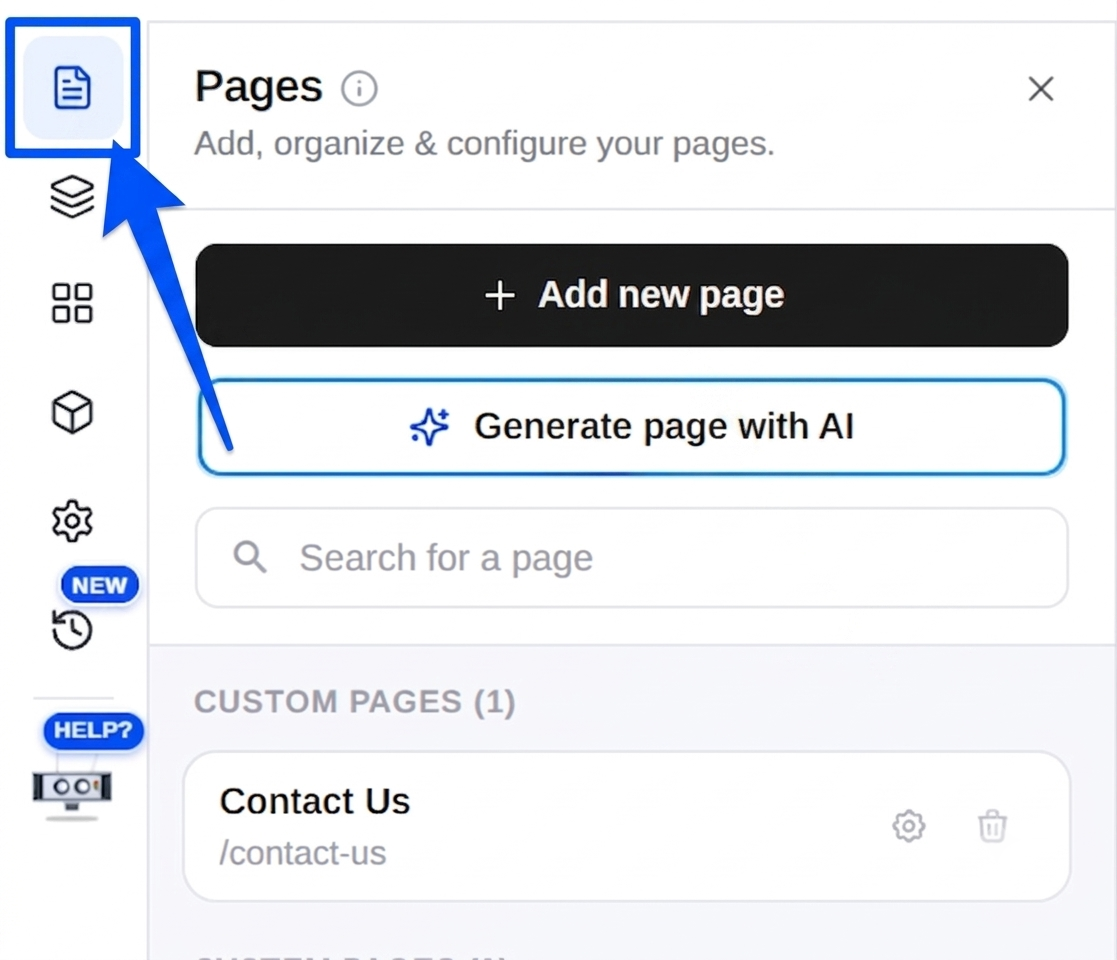
Your store's pages are grouped into three types: Custom Pages, System Pages, and Hosted Pages. Each type has different rules for what you can edit and delete.
Custom Pages
Custom Pages are pages you create yourself: for example a Contact Us or About Us page.
- Create your own pages from scratch.
- Redesign them freely using Buddy AI or by writing code yourself.
- Delete them whenever you want.
You have full control over Custom Pages.
Creating a custom page
You can create a custom page in two ways:
- Manually, click + Add new page and fill in the details yourself.
- With AI, click Generate page with AI and let Buddy build the page from a description.
Option 1: Add a page manually
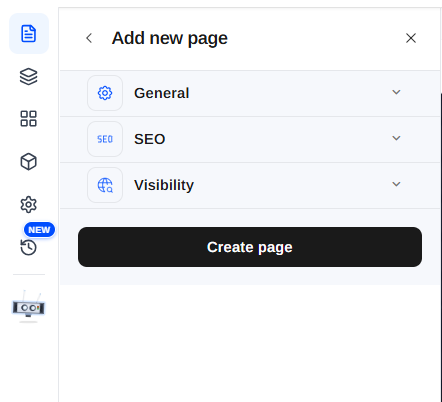
Click + Add new page in the Pages panel to start. The Add new page form has three sections you can expand, General, SEO, and Visibility, and a Create page button at the bottom.
General
Page Name
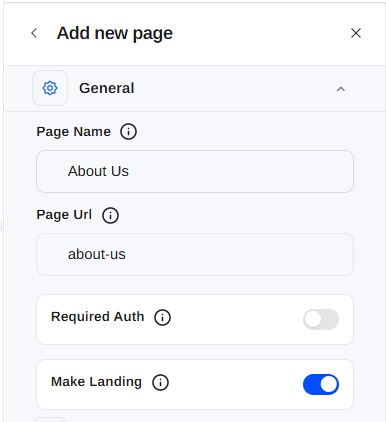
Enter a name for your page (for example About Us).
Page Url
When you type the page name, the Page Url is generated automatically from
it (for example about-us). You can edit the URL yourself if you want a
different one.
Required Auth
Turn this on if visitors must be signed in to view the page. Leave it off to make the page public.
Make Landing
Turn this on to make this page your store's landing page (the page visitors land on first). Leave it off to keep it as a regular page.
SEO
Expand the SEO section to help search engines understand the page.
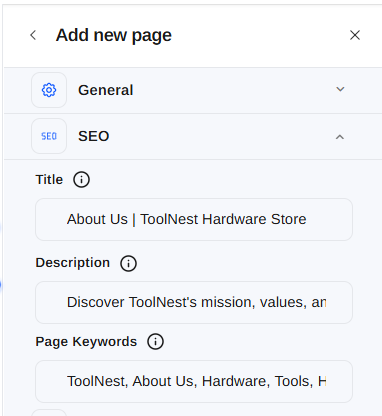
- Title. The page title shown in search results and the browser tab.
- Description. A short summary of the page for search engines.
- Page Keywords. Comma-separated keywords relevant to the page.
Create the page
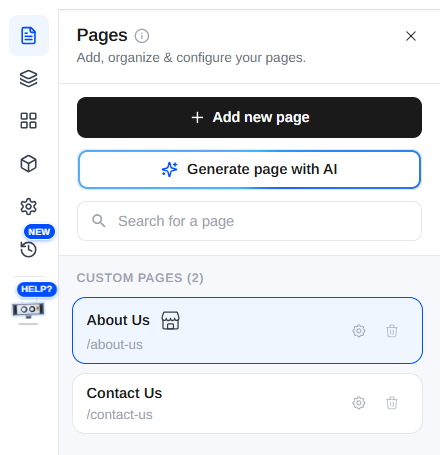
When you're happy with the settings, click Create page. Your new page appears in the Pages panel under Custom Pages.
Option 2: Generate a page with AI
Instead of building a page yourself, you can let AI create a complete page from a short description. In the Pages panel, click Generate page with AI.
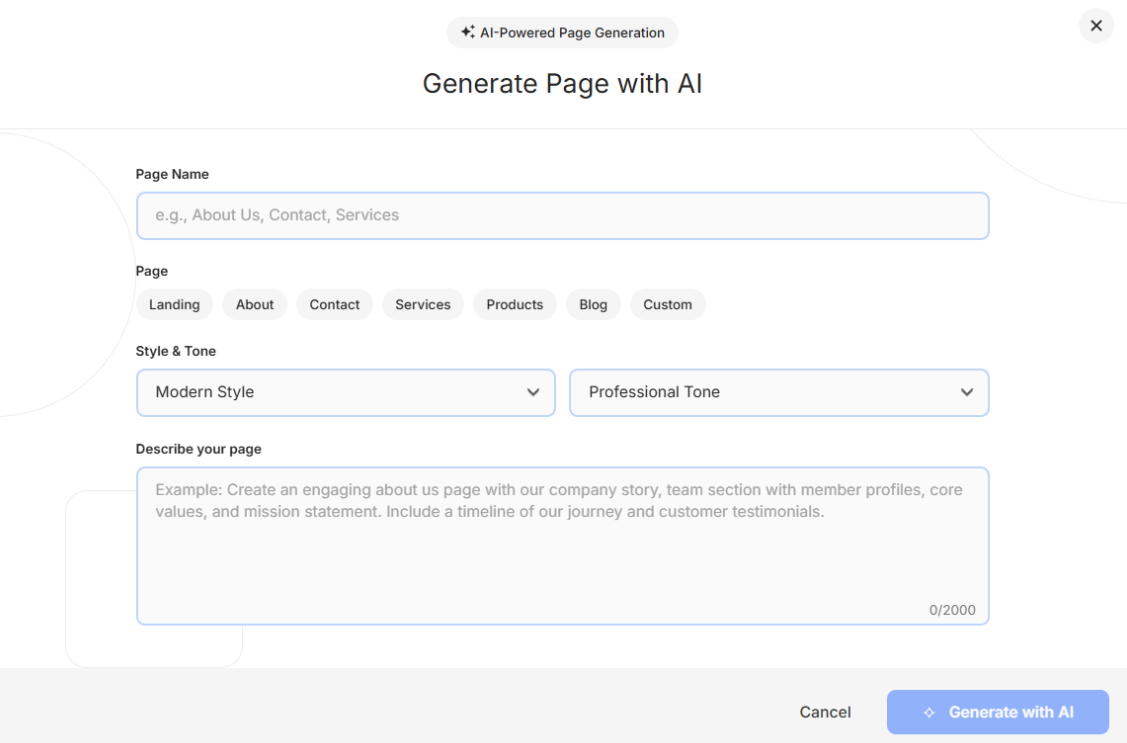
The Generate Page with AI window opens. Fill in the details:
Enter a page name
Type a name for the page (for example About Us, Contact, or Services).
Choose a page type
Pick the type that fits, Landing, About, Contact, Services, Products, Blog, or Custom.
Set the style and tone
Choose a Style (for example Modern Style) and a Tone (for example Professional Tone) so the page matches your brand.
Describe the page
In Describe your page, explain what the page should include (up to 2,000 characters). The more detail you give, the closer the result. For example: "Create an engaging About Us page with our company story, team section, core values, and mission statement."
Generate the page
Click Generate with AI and wait a few minutes while Buddy builds the page.
Designing your custom page
Once the page is created, you can design it in two ways:
- With Buddy AI. Use the AI Block option to generate sections just by describing what you want, and let AI build the page for you.
- Custom (build it yourself). Use Add Block to drop in and arrange blocks manually, and craft the page exactly how you want.
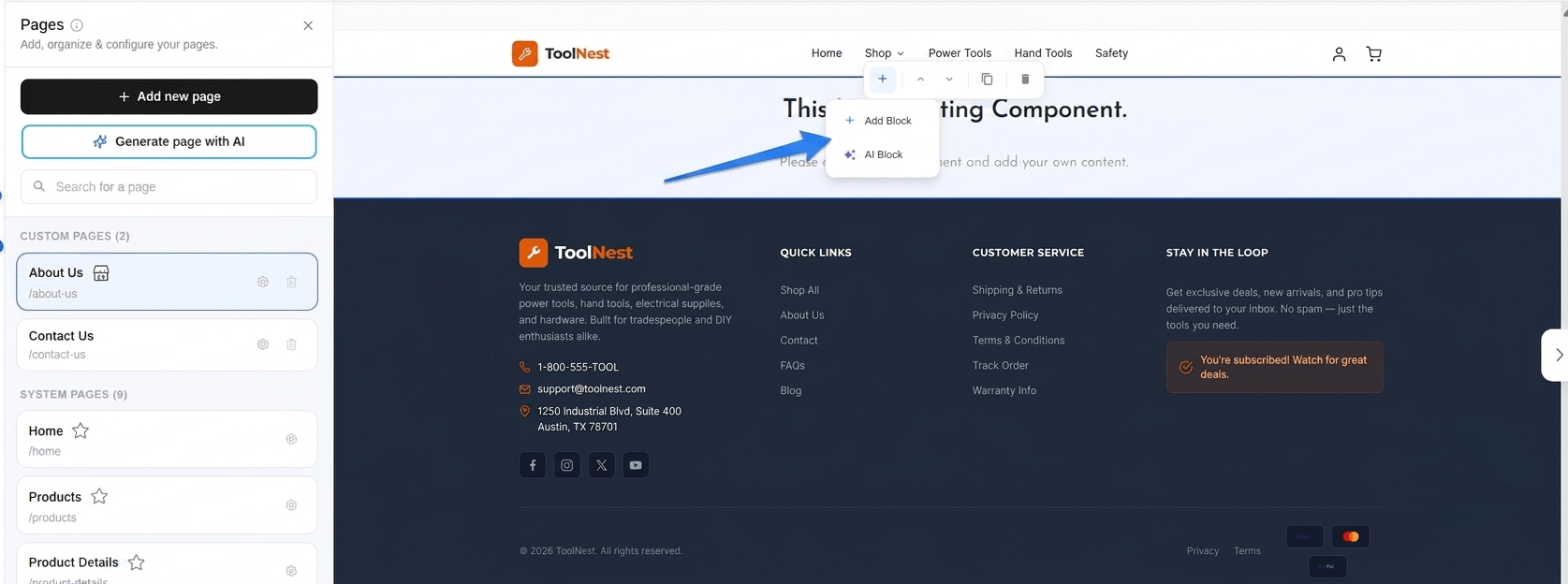
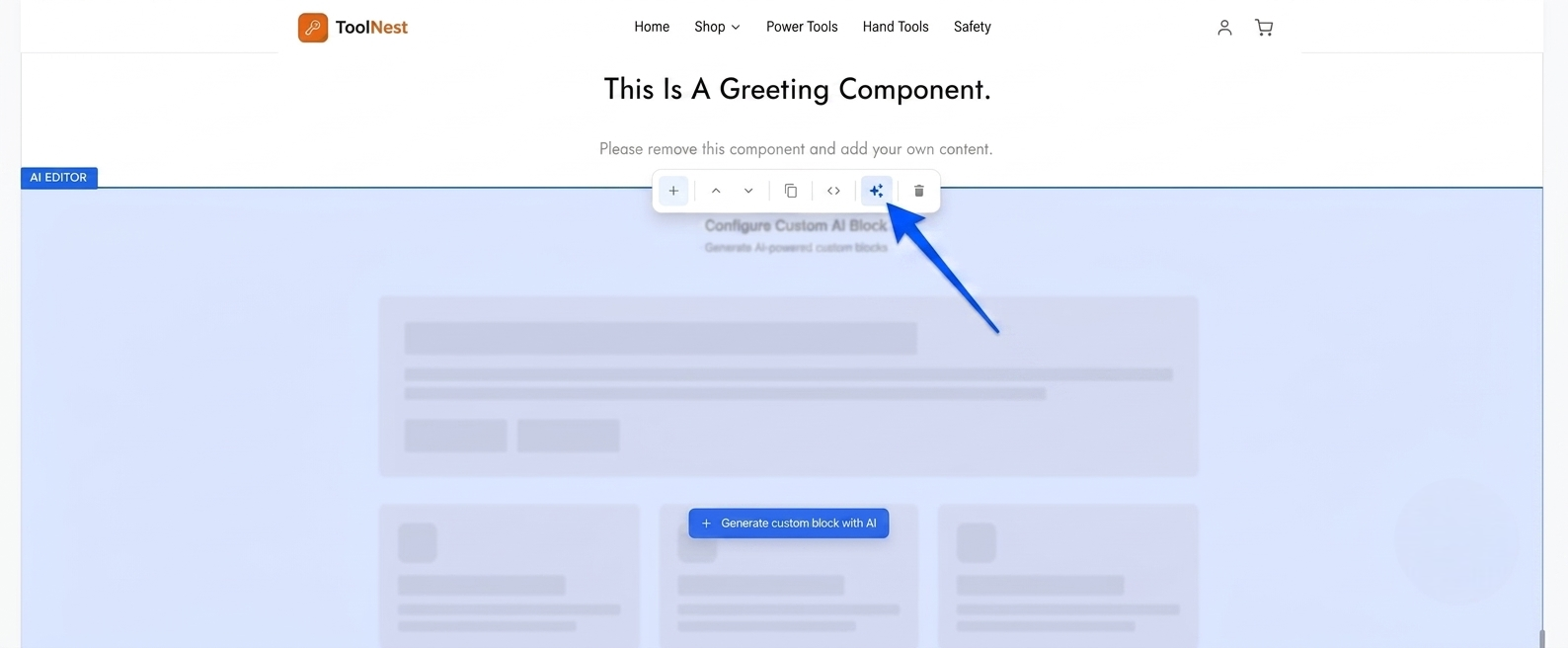
When you choose AI Block, the AI Editor opens with a Configure Custom AI Block view. Click Generate custom block with AI, describe what you want, and AI builds the section for you, so you can now build your shop using AI.
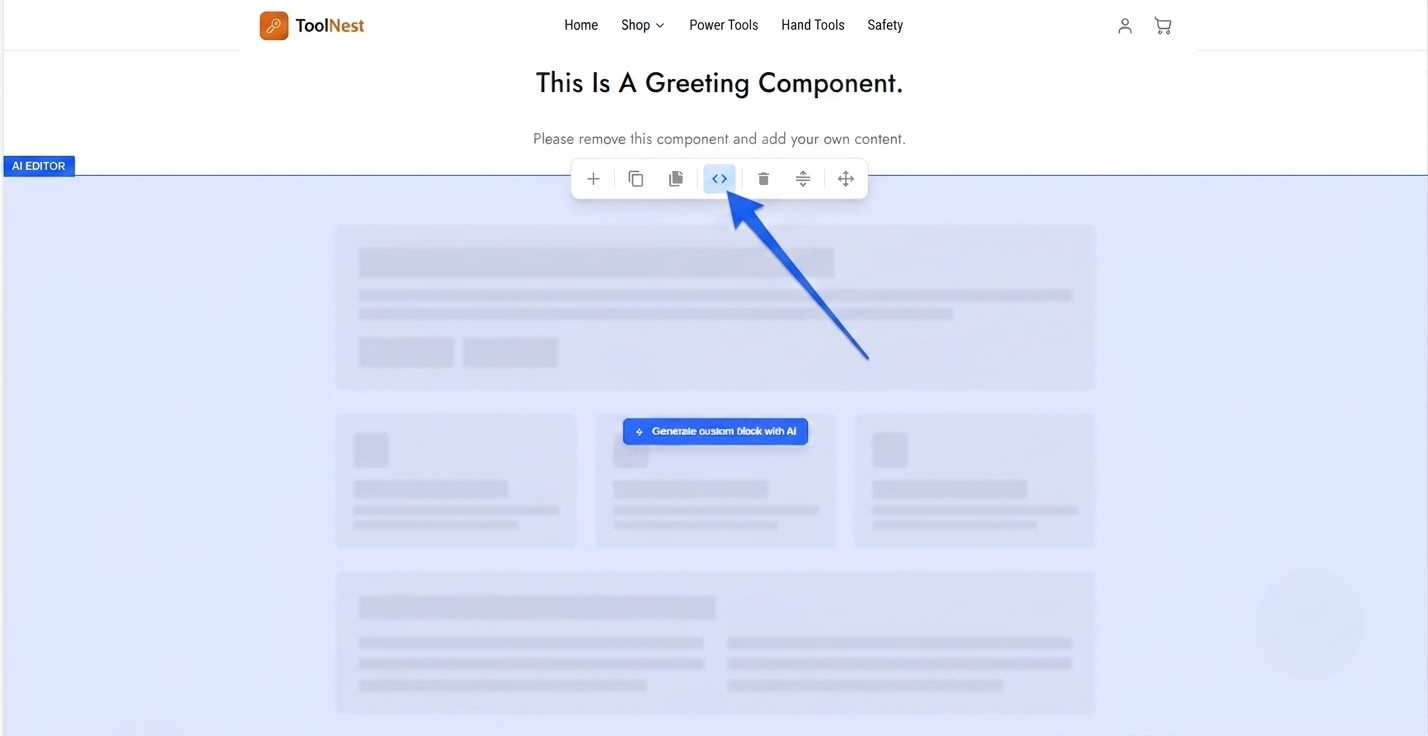
Prefer to write it yourself? Click the </> code icon in the block toolbar to
open the manual code editor and build the block by hand, giving you full control
over the markup and styling.
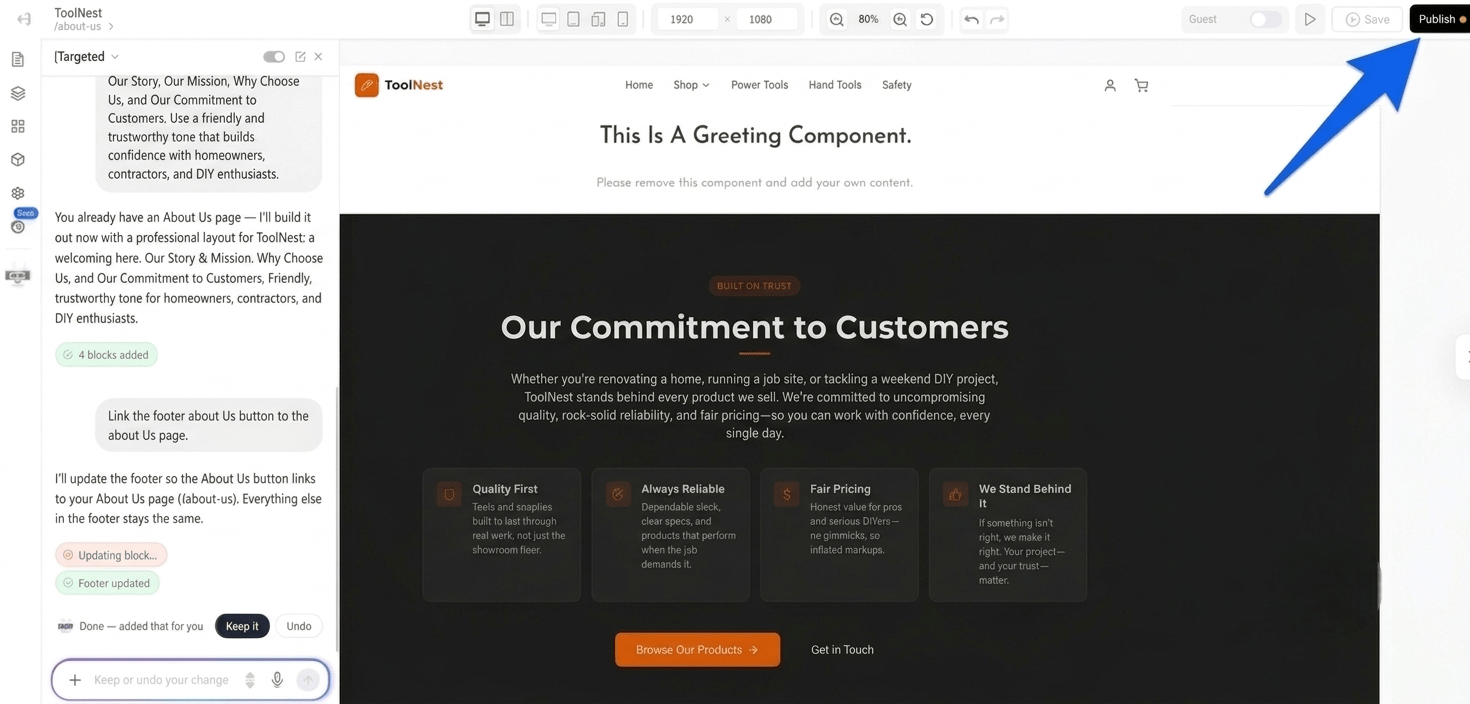
Save and publish your page
Once you've finished designing your page with AI, click the Save & Publish button (top right) to make it live on your store.
System Pages
System Pages are created automatically when your store is set up: such as Home, Products, Product Details, Collections, and Cart. They appear under System Pages in the Pages panel.
- Configure their settings (name, SEO, and visibility), just like a Custom Page.
- Redesign them using Buddy AI or by writing code manually.
- Cannot be deleted: these pages are required for your store to work.
So you can fully change how a System Page looks and how it's found, but you cannot remove it.
Configuring a system page
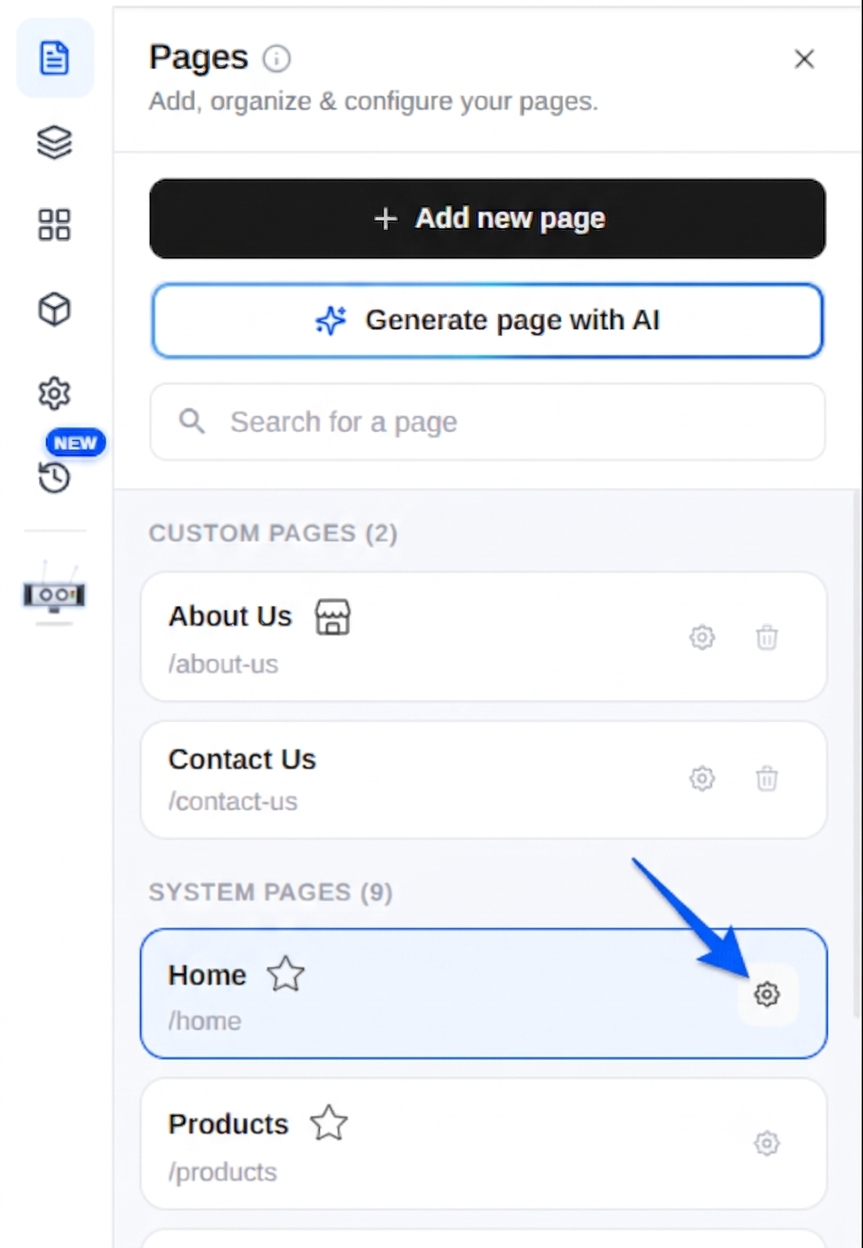
Click the gear (settings) icon on a System Page to open its Page settings. Like a new page, the settings have three sections, General, SEO, and Visibility, with an Update page button at the bottom.
General settings
- Page Name. Rename the page (for example Home).
- Page Url. The URL is fixed for system pages (for example
/home) and can't be changed, since your store depends on it. - Required Auth. Turn on to require visitors to be signed in.
- Make Landing. Turn on to make this page your store's landing page (the page visitors land on first).
SEO settings
- Title. The page title shown in search results and the browser tab.
- Description. A short summary for search engines.
- Page Keywords. Comma-separated keywords to improve ranking.
Visibility settings
Use the Visibility toggle to show or hide the page:
- On (visible), the page is live on your storefront.
- Off (hidden), the page is hidden from your storefront.
When you're done, click Update page to save your changes.
Designing a system page
Just like a Custom Page, you can redesign a System Page in two ways:
- With Buddy AI. Use the AI Block option to generate sections from a prompt and let AI rebuild the page.
- Custom (build it yourself). Use Add Block and the
</>code editor to arrange and edit blocks by hand.
Hosted Pages
Hosted Pages handle secure, account-related flows, Sign In, Sign Up, Forgot Password, Reset Password, Customer Dashboard, and Checkout. Their layout is managed for you.
- Cannot redesign their layout.
- Cannot be deleted.
- You can apply basic branding changes so they match your store.
Branding a Hosted Page
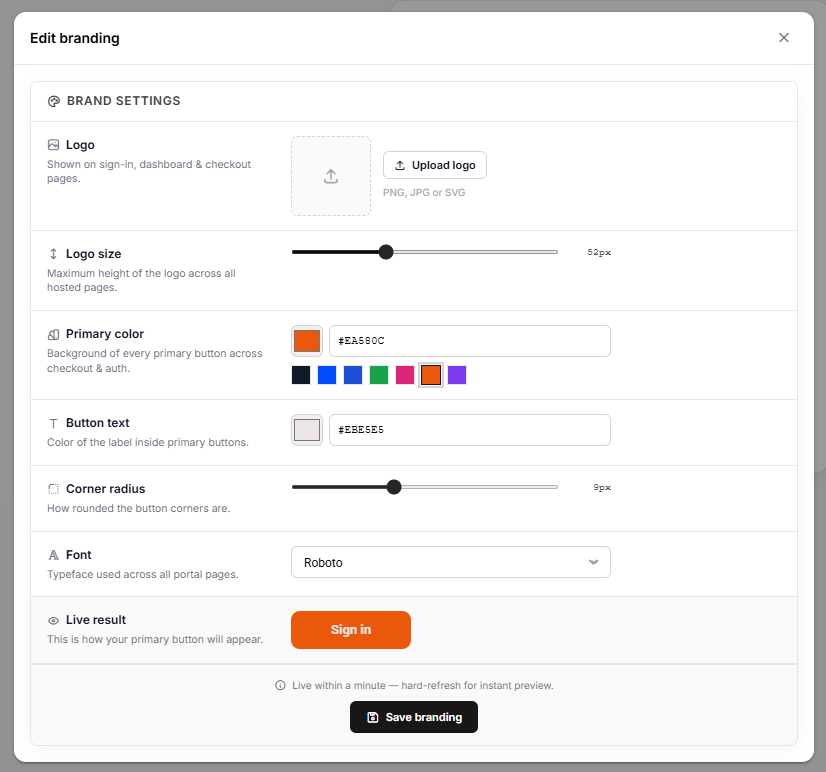
Open a Hosted Page's settings to edit its branding. You can change:
- Logo: upload your own logo (shown on sign-in, dashboard & checkout pages).
- Logo size: set the maximum logo height across all hosted pages.
- Primary color: the background color of every primary button.
- Button text: the color of the label inside primary buttons.
- Corner radius: how rounded the button corners are.
- Font: the typeface used across all portal pages.
A Live result preview shows exactly how your primary button will look as you change these settings.
Summary
| Page type | Redesign layout | Delete | Notes |
|---|---|---|---|
| Custom | Yes, Buddy AI + code | Yes | Fully yours, create, edit, delete |
| System | Yes, Buddy AI + code | No | Auto-created, required, can't be removed |
| Hosted | No | No | Only basic branding (logo, colors, font, radius) |