
Layers
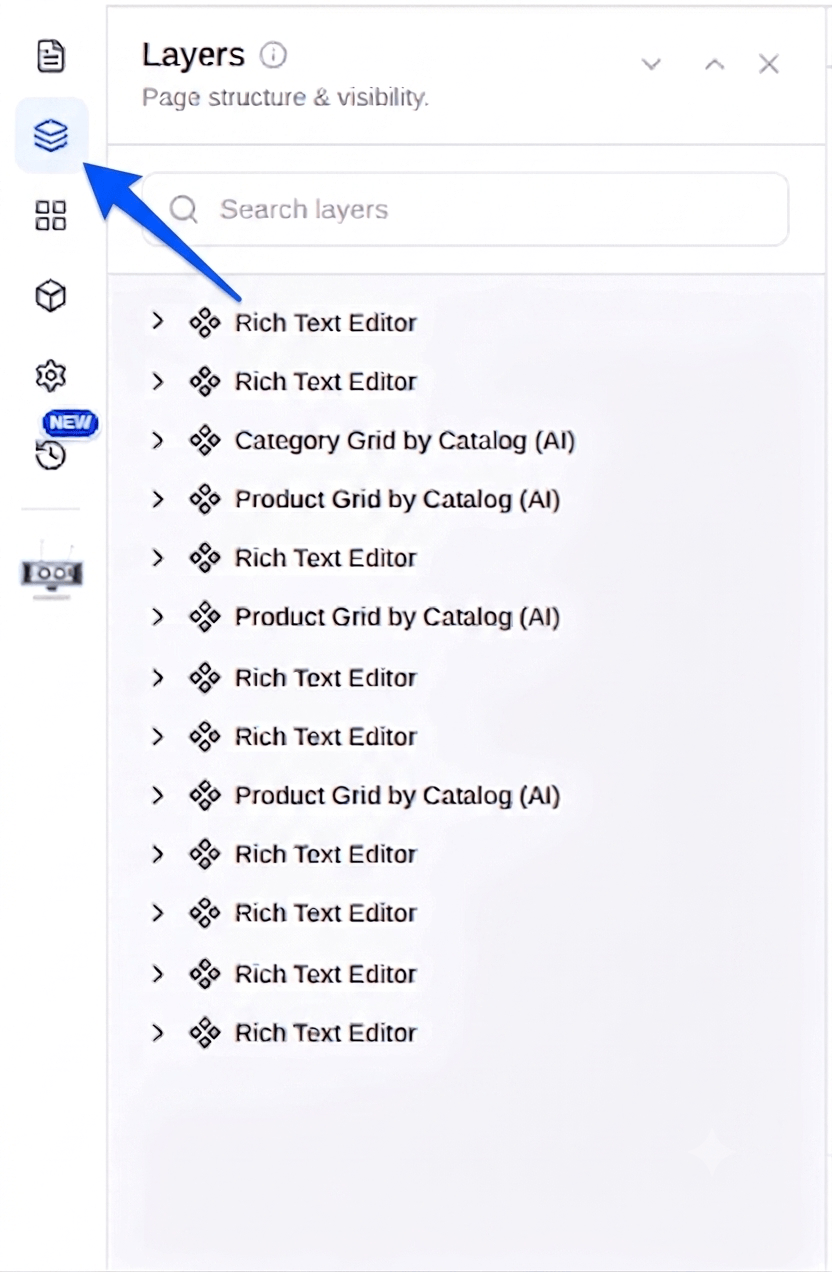
The Layers panel in the Builder shows the structure of the current page as a tree of elements. Open Layers from the Builder's left menu to see how the page is built and to work with individual elements.
The layer tree
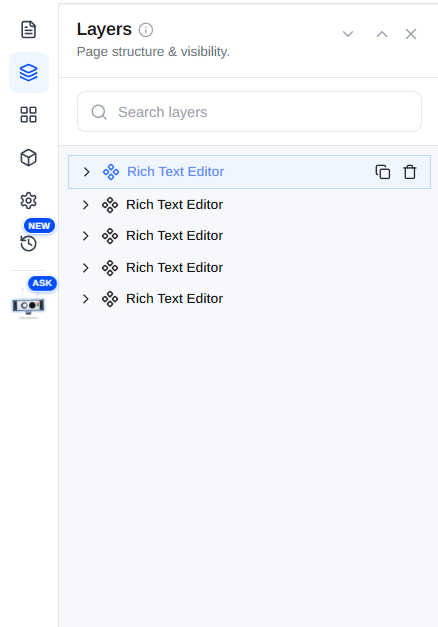
The Layers panel shows the page's complete structure, layout-wise, every section, block, and element as a node in a tree, nested to match how the page is built. This gives you a clear, structured view of the whole page in one place, even the parts that are hard to click directly on the canvas.
Use the Search layers box at the top to quickly find a specific element by name.
What you can do
Layers let you view and manage all page elements from one place. Instead of hunting through the page, you can work with any element right from the tree:
- Select. Click a layer to select the matching element on the canvas, handy for reaching nested or overlapping items.
- Edit. Open a layer to edit that element (its content and properties).
- Duplicate. Click the copy icon on a layer to duplicate that element.
- Delete. Click the trash icon on a layer to remove that element.
- Reorder. Move layers up or down to change the order sections and blocks appear on the page.
Expanding and collapsing the tree
The buttons at the top right of the panel control the whole tree at once:
- Expand all (down arrow). Opens every layer so you can see all nested children (for example the Main node inside each section).
- Collapse all (up arrow). Closes every layer back to the top-level list, for a clean, high-level overview.