

Create a Store with AI (Buddy)
Buddy is Orderain's AI agent. Instead of picking a theme and customizing it yourself, you describe the store you want and Buddy designs and builds the whole thing, including branding, colors, pages, products, and copy.
This is the Generate with AI path for creating your first store (the recommended option).
Watch the walkthrough
Prefer to follow along in a video? Watch the full walkthrough right here, then read the step-by-step guide below.
Step 1: Choose "Generate with AI"
On the Welcome screen, pick Generate with AI (Option 01, marked Recommended) and click Try AI.
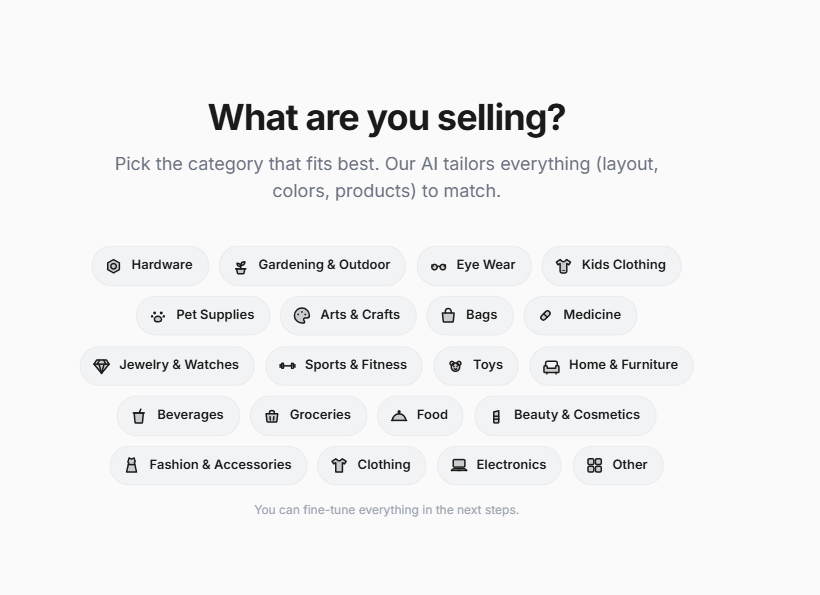
Step 2: Pick your category
On What are you selling?, choose the category that fits best (Hardware, Eye Wear, Electronics, Other, etc.). Buddy uses this to tailor layout, colors, and starter products. Click Continue.
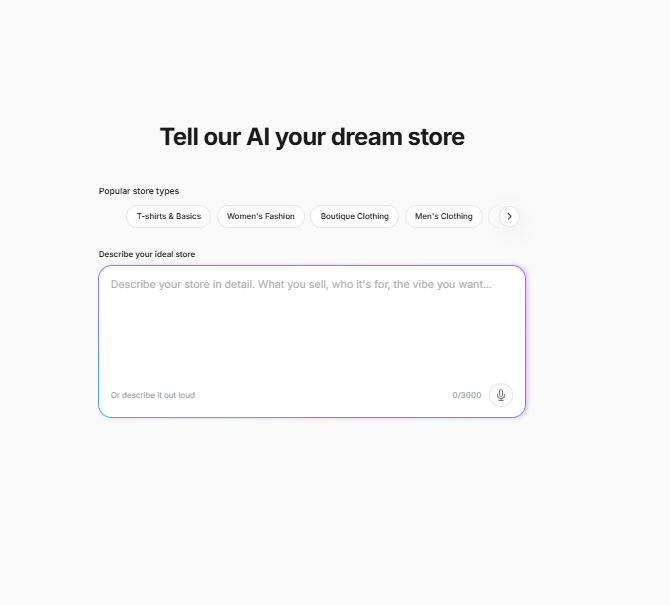
Step 3: Describe your dream store
On Tell our AI your dream store, you fill in a single Describe your ideal store box (up to 3,000 characters). There are three ways to fill it, and you only need one:
Use a starter chip
Write your own vision
Dictate it out loud
When your description is ready, click Continue.
Step 4: Pick your colors
On Pick your colors, choose how your palette is set. You have three options, and you only need one:
Let AI decide
Pick a ready-made palette
Custom colors
If you chose Custom colors, set your hex values and click Done. Then click Continue.
Step 5: Name your store
On Name your store, enter a Site Name. Orderain claims a matching free
yourname.orderain.com subdomain and checks availability as you type. When you
see "…orderain.com is yours. Nice and memorable.", click Continue.
Step 6: Set your store currency
On Set your store currency, pick the currency you'll sell in (USD, EUR, GBP, CAD, AUD, JPY… click Load more for the full list).
At the bottom, click See my store (or Back to revise an earlier step).
Step 7: Review
The review screen summarizes your setup:
| Item | Example |
|---|---|
| Store category chosen | Other |
| Vision defined | In your own words |
| Brand colors selected | AI will choose the perfect palette |
| Name claimed | edusphereacademy.orderain.com |
| Currency set | USD |
Use any Edit link to jump back and change a step. When ready, click Continue to choose your plan.
Step 8: Choose a plan
On the plan screen, pick a subscription. Use the Monthly / Annual toggle at the top to switch billing modes. Annual saves 20%.
| Plan | Monthly | Annual (Save 20%) | Products | Staff | Warehouses |
|---|---|---|---|---|---|
| Starter | $5/mo | $4/mo ($48/year) | 30 | 3 | 2 |
| Solo (Most Popular) | $14/mo | $11/mo ($134/year) | 3,000 | 5 | 3 |
| Team | $39/mo | $31/mo ($374/year) | Unlimited | 8 | 5 |
All plans include unlimited website publishing, no Orderain branding, full SEO features, advanced/premium themes, and the customer portal. Solo adds room to grow over Starter, and Team scales everything up further.
Click Get Started on your chosen plan to proceed to checkout.
Step 9: Complete checkout
Checkout is handled securely by Stripe. Confirm the subscription (e.g. $1.00 for the first month), enter your payment method (Card or Cash App Pay), and click Subscribe.
Step 10: Watch Buddy build your store
After payment, Buddy builds everything. Buddy is building your store… shows live progress (4–5 minutes) through six phases:
Planning the visuals
Studies your brand and audience, chooses a visual style, locks in your palette.
Creating your brand imagery
Designs your hero banner, generates product photos, and supporting graphics.
Setting up your products & categories
Organizes categories, picks starter products, and writes names and descriptions.
Designing your store pages
Builds the navigation, footer, homepage, product, collections, cart, privacy, and terms pages, all SEO-optimized.
Creating your store cover
Sketches, renders, and color-tunes your store cover image.
Finishing your store setup
Uploads brand images, saves pages, applies your theme, connects your store to your account, and sets up your dashboard.
When it hits 100%, you'll see Your store is ready! 🎉
Step 11: Your store opens in the builder
Buddy hands you off to the store builder at /web/shop/builder/…. It runs a
final Finalizing your site pass (Page 1 of 8 through 8 of 8: Home, Products,
Collections, Product Details, and more), then shows the confirmation
"Your site is styled and published."
Your finished storefront now loads in the editor, ready to customize.